 June 11, 2026
 5 min
5 min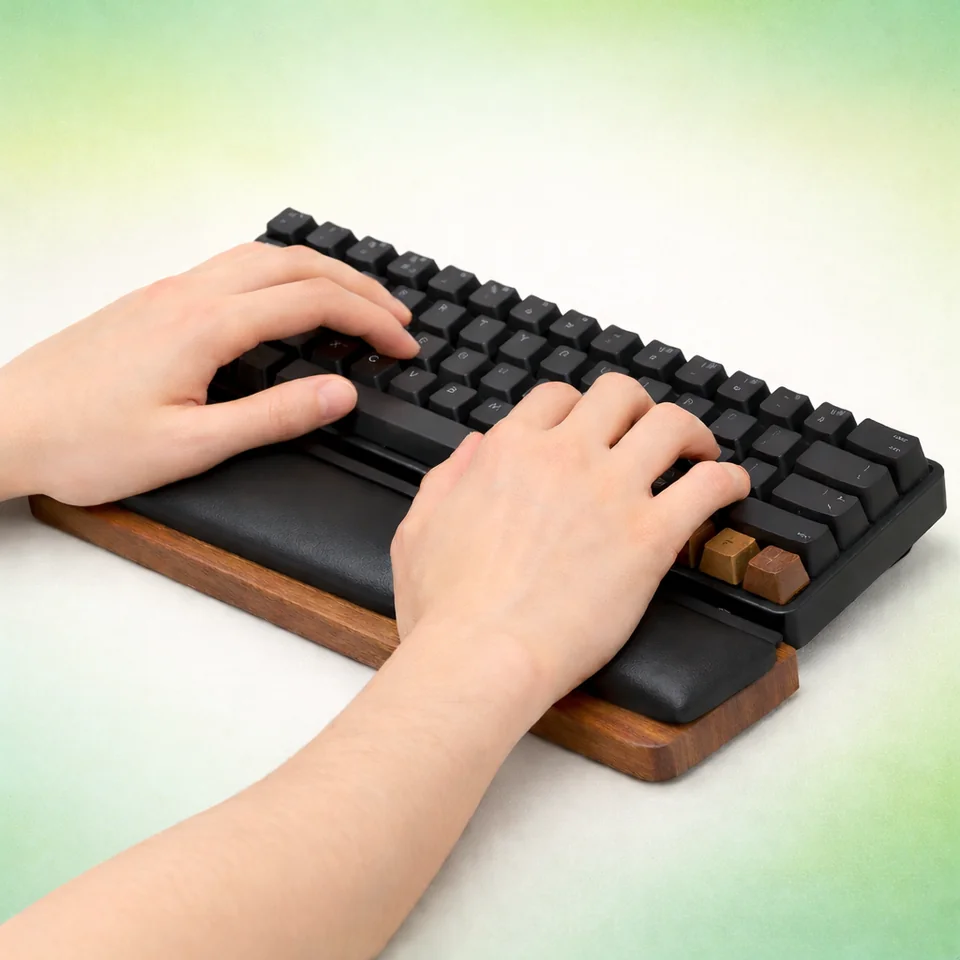
Why posture affects your typing speed
If you want to type faster, posture is the foundation of your technique. An unstable position forces your fingers to compensate, which reduces accuracy and increases fatigue. A neutral posture, on the other hand, makes each movement smoother.
A simple benchmark: OSHA recommendations place the elbows close to the body at an angle of 90 to 120 degrees, with wrists aligned with the forearms and feet firmly supported (source: OSHA Computer Workstations eTool). This setup limits extreme positions that slow down typing.
Before aiming for a personal record, build this foundation first, then measure your progress with the Tapotons typing speed test.
Essential adjustments: desk, chair, screen, and arms
The desk-chair-screen trio determines your comfort. If the height is wrong, your shoulders rise, your wrists bend, and your typing becomes less consistent.
Recommended setup:
- Chair: feet flat, pelvis stable, back supported.
- Desk: height that allows relaxed shoulders and elbows close to the torso.
- Screen: top of the screen near eye level to reduce neck flexion.
- Keyboard/mouse: close to the body to avoid keeping the arms stretched forward.
Another key point: avoid staying completely still for too long. Small posture adjustments throughout the day reduce cumulative strain.
To improve cleanly, combine this setup with the Tapotons typing courses.
Hand position and keyboard angle: what really matters
To type quickly without pain, aim for a position that stays in line:
- Wrists aligned with the forearms.
- Hands relaxed, without excessive upward extension.
- Minimal sideways deviation, with the hands not bent outward.
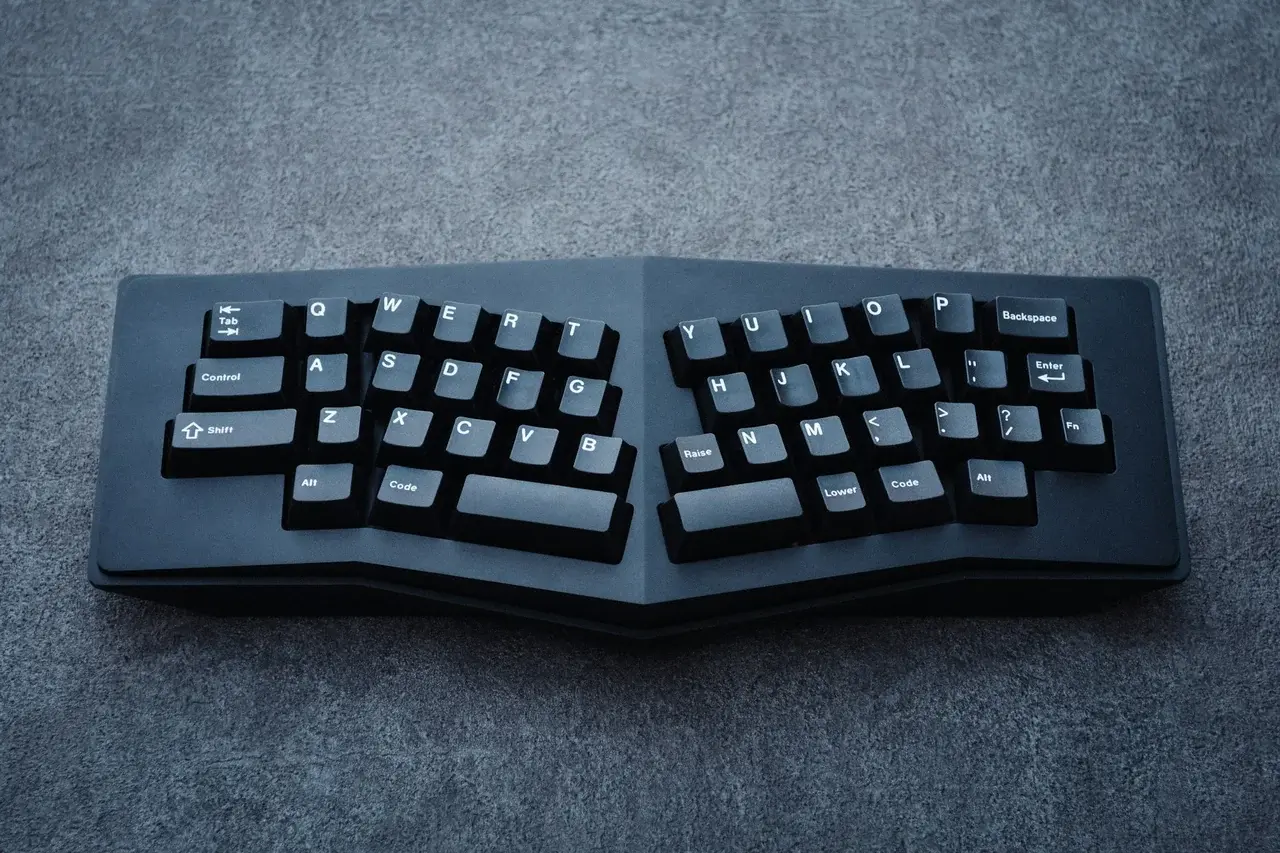
A study of 90 workers found that well-adjusted split keyboards reduced average ulnar deviation from 12 degrees to less than 5 degrees (source: Simoneau et al., 2001, PubMed). This brings the hand closer to a more neutral posture.
Another solid data point: a randomized study of 182 operators followed for 52 weeks observed that a forearm support reduced the risk of new neck/shoulder disorders, with a HR = 0.49 (source: Rempel et al., Occupational and Environmental Medicine, 2006).
Useful accessories: ergonomic keyboard, wrist rest, armrests
Accessories can help, but only if the overall setup is already correct.
- Ergonomic split keyboard: useful for reducing wrist spread and twisting.
- Wrist rest: most useful during pauses, not as a permanent support point while actively typing.
- Adjusted armrests: can reduce load on the shoulders.
- Low-profile keyboard: can limit wrist extension if your desk is slightly too high.
For wrist support, OSHA instead recommends support under the palm and indicates a depth of at least 1.5 inches (3.8 cm) for the support (source: OSHA Wrist/Palm Supports). The goal is to reduce direct pressure on the carpal tunnel area.
A 15-minute action plan to type faster without pain
- Adjust your chair and desk first: relaxed shoulders, elbows close to the body.
- Spend 2 minutes checking that your wrists stay aligned while typing.
- Adjust the keyboard position, distance, and angle until tension disappears.
- Add an accessory only to solve a clearly identified problem.
- Track speed and accuracy every week with a short test.
Final goal: typing that is faster, more accurate, and sustainable. To keep improving, also browse the guides on the Tapotons blog.